While SOLIDWORKS has a pretty robust user community and content sharing sites with almost any weldment profile in existence, there are always opportunities where you might need to create your own custom weldment profile. This could be a profile with an in-house created, unique cross-section, or even just a commonly used extrusion with no SOLIDWORKS profile created yet. Fortunately, SOLIDWORKS has a multitude of tools to make creating weldment profiles extremely easy.
We’re going to explore how to create your own custom weldment profiles and even use imported geometry. Specifically, we’ll be working with a 3-inch by 1 1/2-inch piece of 8020 extruded aluminum. This guide will help you optimize your weldment profiles to ensure they don’t negatively impact your parts and assemblies, especially when dealing with complex profiles.
Step 1: Selecting the Plane
The first step is to pick the plane you’ll be using. In our case, we’ll use the Front Plane. Once selected, we’ll sketch the cross-sectional profile for our weldment. Since we’re working with imported geometry, we can use the “Convert Entities” command to pull in our loops, including the exterior loop. This saves time from having to manually recreate the profile.
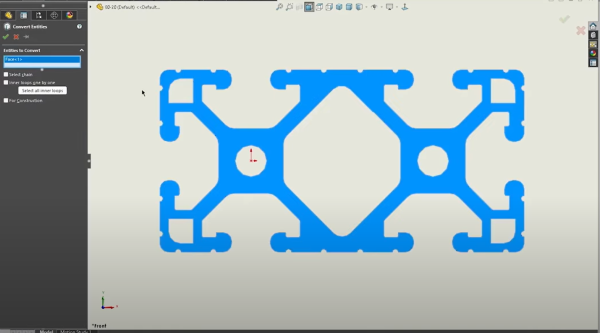 Using the Convert Entities command
Step 2: Profile Optimization
After setting up the sketches and dimensions, we can start optimizing the profile. Optimization is crucial for those working with imported sketches or parts, especially when converting them to 8020 profiles. We’ll use the “Trim and Extend” tool to clean up the edges and remove unnecessary grooves that are irrelevant for our design intent. These profiles would be purchased meaning we only care about the overall dimensions and lengths, allowing us to remove anything that could impact performance.

Trimming the custom weldment profile
With the grooves removed, it’s time to decide which components of the profile to retain or discard. For traditionally hollow 8020 profiles, you might want to leave certain areas empty if you’re using weldment structure systems to calculate the total weight of your final projects. However, if weight calculation isn’t necessary and you just want lengths, you can remove these areas to further optimize the profile’s impact on your parts and assemblies.
Step 3: Placing Pierce Points
Next, we’ll place pierce points to determine the locations used when placing weldments in a model using the custom profile. It’s advisable to place more sketch points than needed to avoid interruptions during the design process. These points can be anchored and defined fully using sketch relations or dimensions. In my case, I’ll fix them in place to avoid any issues down the line.
Step 4: Saving the Custom Weldment Profile
With the profile created, dimensioned, and customized, the next step is to save it. Ensure the relevant sketch is selected from the SOLIDWORKS Feature Tree, as it needs to be highlighted when saving to show up in your library feature.

Saving the custom weldment profile
Save the sketch as a library feature part in a custom file directory that is accessible to all users who need to use the custom profile. Categorize based on member type and include inch or metric versions if necessary. For example, a 3-inch by 1 1/2-inch profile can be saved as “2 by 1” to easily recognize later.
Step 5: Testing the Profile
To test the saved profile, create a new part and sketch a basic rectangle on the Top Plane. Add dimensions, such as 12 feet by 8 feet, and use the Weldments tab of the SOLIDWORKS Command Manager to start applying structural members. At this point, we can validate our pierce points and make sure everything we might want from our weldments profile is working correctly. If the profile is not working correctly, you can go back to the original sketch to adjust what is needed.
By following these steps, we’ve successfully created an 8020 profile from imported geometry. This process will work for almost any custom profile needed, whether created from scratch or from an imported model.
To learn more about SOLIDWORKS Weldments, register for an upcoming training course here.
Cloud Software
law
4
Berita Olahraga
Lowongan Kerja
Berita Terkini
Berita Terbaru
Berita Teknologi
Seputar Teknologi
Berita Politik
Resep Masakan
Pendidikan