External references, also known as in-context references, are created when a SOLIDWORKS sketch or feature utilizes reference geometry outside of the part that it was created within. One common use case for this is lining up fastener hole positions from one component to another.
However, sometimes the creation of external references can become a burden when there are too many interconnected references spanning across numerous parts in a large assembly. Keep reading to learn how to prevent in-context references.
Using No External References Mode
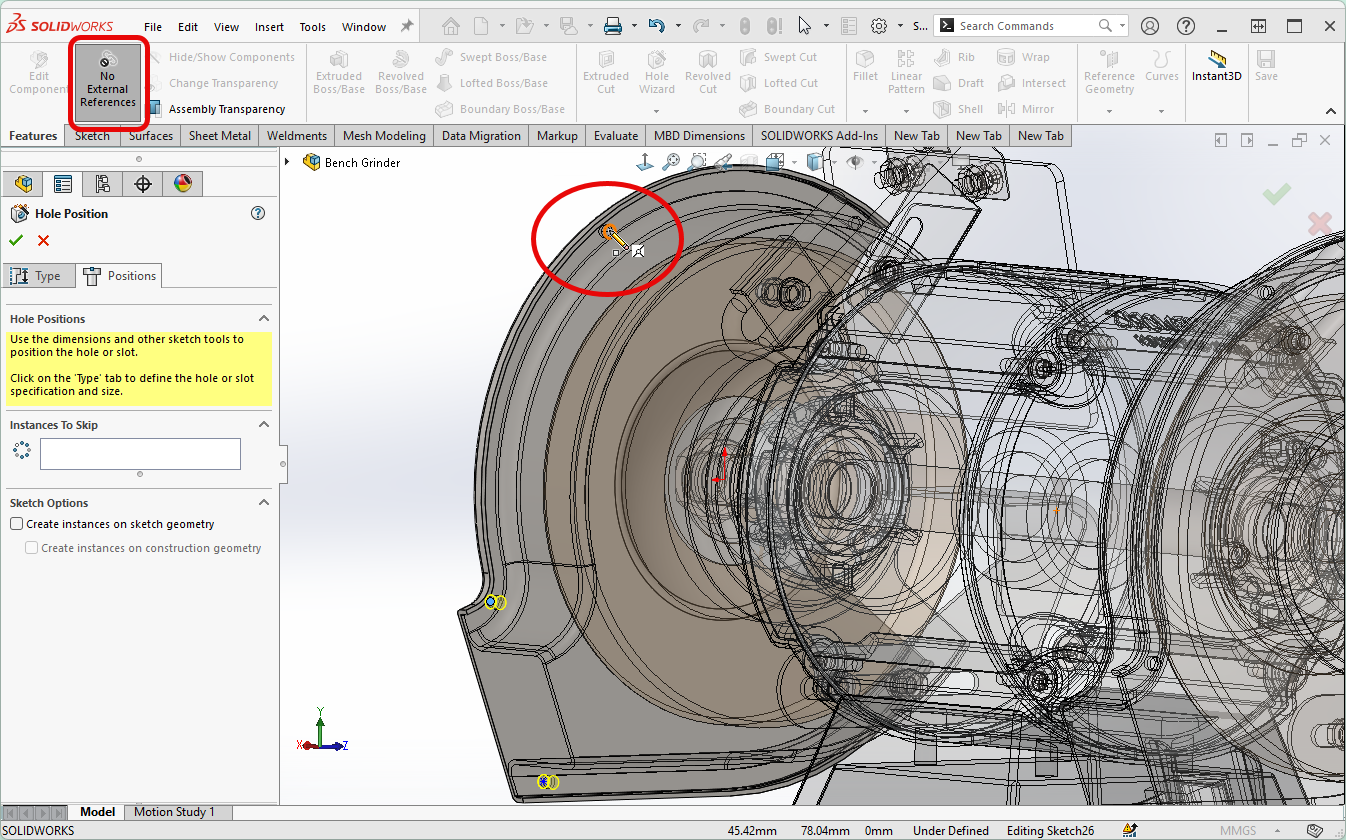
When editing a part inside of an assembly, there is an option in the upper left corner of the interface called No External References. When this option is selected and is shown as dark grey, any actions that would otherwise generate permanent in-context references are treated like a one-time copy. Ultimately, any external reference that would be created is automatically broken.
 Activating No External References mode
Creating Hole Wizard Holes Without External References
In the screenshot below, the Cover component needs holes added that will line up with the existing Guard component in the assembly. When editing the Cover part in the context of the assembly, the Hole Wizard hole positions can be placed at the center of the existing holes on the Guard part. After applying the Hole Wizard feature, the holes line up perfectly.

Creating Hole Wizard holes with the No External References option
Investigating Other Affected Components
Let’s look inside the Cover part in its own window. In the image below, we can see the Hole Wizard sketch that was just created. Remember that while the sketch points currently line up with the holes, they are not permanently locked.
From this point on, if the original Guard component design is modified, resulting in the hole locations moving, these points will not update. Additionally, the sketch points being blue tells us that they are underdefined. This means I could easily drag and drop and move these points accidentally, and the original alignment would be lost.

Undefined sketch points in the Cover part
Fully Defining the Incomplete References
At this point, it is a good idea to use Fully Define Sketch to define the hole positions numerically, as shown below. This way, their positions are locked in place so they can’t be accidentally moved. However, they are not connected externally to the Guard component and will not update when changes are made there.

Fully defining the sketch
Following a similar workflow, you could use No External Reference mode with commands like Convert Entities or Offset Entities to create one-time transfers or copies of geometry from one part to another within an assembly, while avoiding permanent external reference links between the files!
How to Learn More SOLIDWORKS Tips and Tricks
TriMech Group’s technical experts are dedicated to providing you with the answers to your toughest design challenges in bite-sized chunks. From the basics of SOLIDWORKS to more niche, advanced techniques, our Tech Tips will make you a more efficient, better-equipped SOLIDWORKS user.
To get these Tech Tips delivered straight to your inbox, sign up for our Bi-Weekly Newsletter here.
Cloud Software
law
4
Berita Olahraga
Lowongan Kerja
Berita Terkini
Berita Terbaru
Berita Teknologi
Seputar Teknologi
Berita Politik
Resep Masakan
Pendidikan