If you’re just getting started with SOLIDWORKS, one common habit you may have picked up is reaching for the circle tool any time you need to sketch an arc. It seems like the obvious choice, but it often leads to extra work.
Using the arc tools in SOLIDWORKS can help reduce redundant work in your modeling workflow and give you a better quality end result. In this video, I’ll demonstrate how starting with a circle may be slowing you down, and when it may be more effective to use other arc tools while sketching.
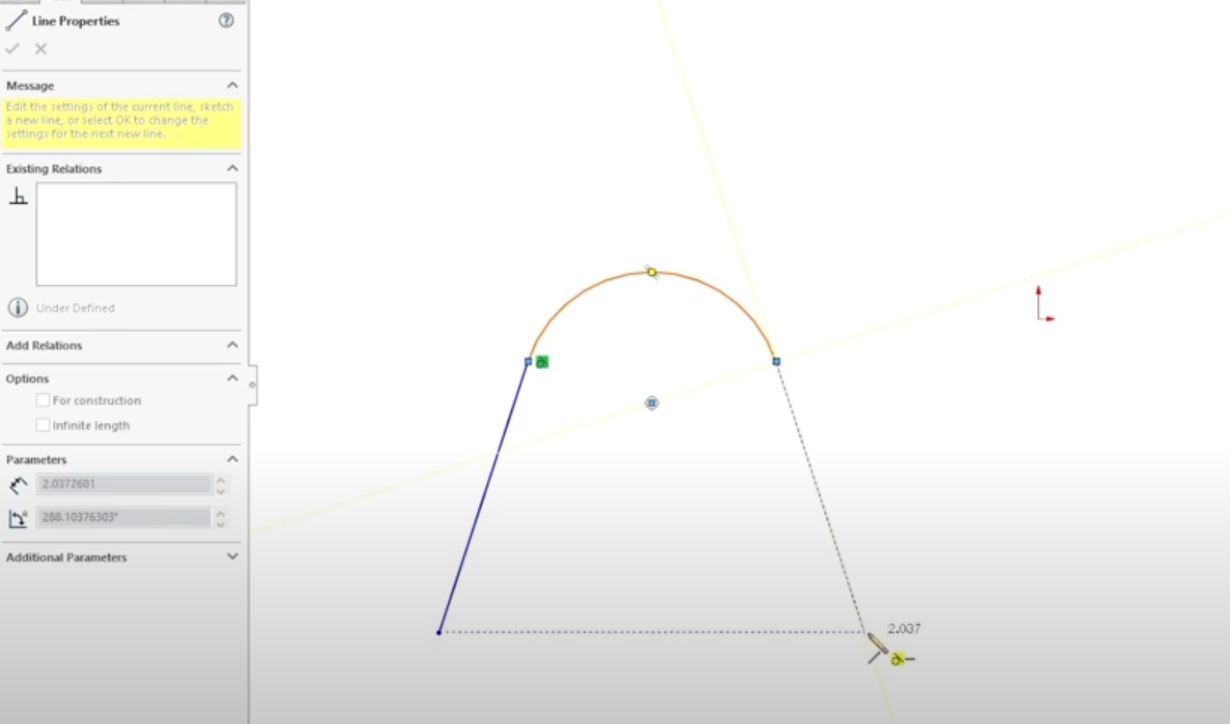
 Tangent arcs in a SOLIDWORKS sketch
The Problem with a Circle-First Approach
One common way to create a semicircle or an arc is to start by sketching a full circle, then trimming it down. While this isn’t technically wrong, it can be less effective than other methods that give the same end result. For example, if your goal was to draw three straight lines with an arc across the top (I’ll refer to it as a “tombstone” shape), using the circle-first method would have you open the Circle command, the Line command, and the Trim command.

Tombstone shape created using the circle-first approach
This method creates excess geometry, which may clutter your design if not trimmed properly. It also uses more mouse movement and button clicks to achieve an end result that could be done much quicker by utilizing the Line command in combination with tangent arcs.
Line Tool and Tangent Arc Shortcut
In the example mentioned previously, when trying to achieve a tombstone shape, the Line command has a built-in shortcut that makes this geometry quick and easy to create. Start by sketching one straight line and then move your cursor away from the endpoint without clicking. Now, hover your mouse over the endpoint and move it away.

Using the shortcut to access the Arc command
The tool will automatically switch into tangent arc mode. You can also press the “A” key to manually toggle between lines and arcs while you’re sketching. This lets you transition smoothly between straight lines and arcs without ever switching tools.
Other Arc Tools Worth Exploring
Besides the arc shortcut in the Line command, SOLIDWORKS offers several other arc types, each with its own use case:
-
Tangent Arc: Starts from an existing sketch entity and maintains tangency automatically. This is great for clean transitions across your part.
-
3-Point Arc: First and second clicks define the arc endpoints, and the third click sets the curvature. This is great when you have predefined endpoints.
-
Centerpoint Arc: First click sets the center, second defines the radius, and third sets the arc’s extent. This is great if you know where the center of the arc lands.
If your first instinct is to start with a circle every time and trim it down, try building the shape directly with arcs instead. It may take a bit of practice, but in the long run, it’ll save you time and reduce clutter in your sketches. Avoiding these types of rookie mistakes can make you a more efficient modeler and help you produce a better end result.
To learn other time-saving tips, register for one of our upcoming SOLIDWORKS Training Courses here.
Cloud Software
law
4
Berita Olahraga
Lowongan Kerja
Berita Terkini
Berita Terbaru
Berita Teknologi
Seputar Teknologi
Berita Politik
Resep Masakan
Pendidikan