Keeping SOLIDWORKS running smoothly in a networked environment depends heavily on ensuring the SolidNetWork License Manager is up to date. Without updating the SolidNetWork License Manager, you risk exposing yourself to security risks and falling behind with key functionality for end users.
The steps to update the SOLIDWORKS SolidNetWork License Manager are straightforward; however, there are a few things to think about and plan for ahead of time.
What Is the SolidNetwork License Manager?
The SolidNetWork License (SNL) Manager is the server application that provides SOLIDWORKS licenses to users on a network. Client machines have SOLIDWORKS configured to communicate with the License Manager service on the server.
The SNL Manager must maintain the following requirements:
- The major version matches or is newer than the client machines
- Activation is performed once per renewal cycle or once per year to refresh the maintenance status
- The SolidNetwork License Manager service is running
Why Updating the SNL Manager Is Important
Keeping the License Manager updated is more important than downloading the new, shiny version of the software.
SOLIDWORKS Version Compatibility
SOLIDWORKS clients require the license manager to be the same version or newer than the installed SOLIDWORKS version. If users upgrade SOLIDWORKS without the server being updated and reactivated first, an error message will occur stating that the version of the client is newer than the server.

Operating System Changes
Each version of the License Manager is tested and validated on specific operating systems. Consult the SOLIDWORKS System Requirements page to ensure support prior to any updates.
What to Consider Before Updating the SolidNetWork License Manager
Like many software upgrades, there are a few considerations before upgrading to protect yourself in case the upgrade fails.
Document License Information
A direct upgrade of the license manager can be performed, which will maintain license information. However, always keep records of your license information for reference.
Be sure to document:
- Serial numbers
- Server name and port settings
- Options file (if applicable)
Potential Downtime
Each SOLIDWORKS client has a heartbeat to the server to verify the service is running, which occurs every two minutes. If the service is not running, clients will receive a warning after ten minutes, and if a license cannot be obtained after 20 minutes, clients will be prompted to save work, and the license will be revoked.
A direct upgrade of the SNL typically takes less than ten minutes, so users are unlikely to receive any messages. However, consider updating outside of key work hours to account for possible delays.
How to Update the SolidNetWork License Manager
The upgrade process for the SolidNetWork License Manager follows a few key steps.
Download the Installation Media
The SOLIDWORKS Installation Manager can be used to install or upgrade the SolidNetwork License Manager, but it can also be used to install SOLIDWORKS on client machines. The download files are available at the SOLIDWORKS Downloads page.
Please note that access to the SOLIDWORKS Downloads page requires an active subscription and a 3DEXPERIENCE ID tied to your company’s subscription benefits.
Return Borrowed licenses
Before upgrading, ensure that all borrowed licenses are returned.
Deactivate licenses
While not required, it is best practice to deactivate all network licenses on the server.
To deactivate your license prior to upgrading:
- Open the SolidNetWork License Manager.
- Select Modify.
 Modifying activated SOLIDWORKS licenses
 - Use the option to move product licenses and follow the prompts.
Install the New Software Version
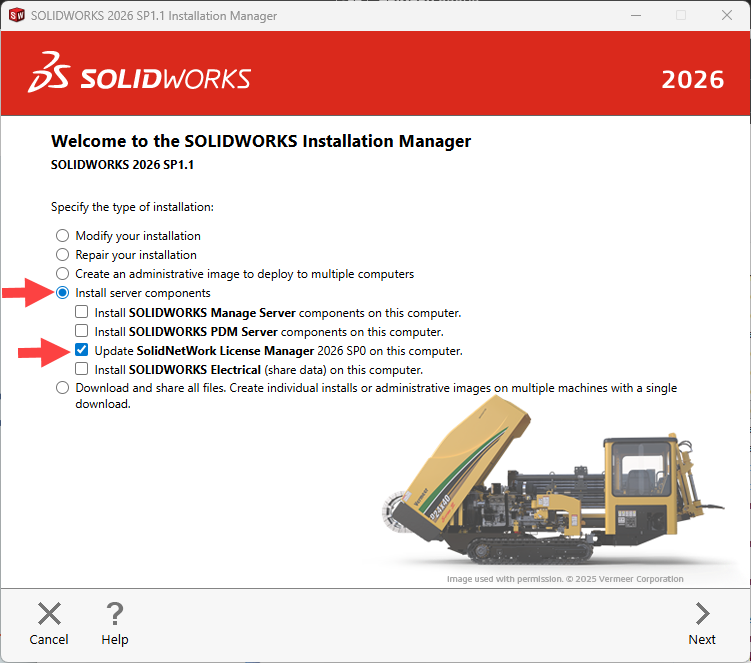
If using the SOLIDWORKS Installation Manager, select Server Products > Update SolidNetWork License Manager.

How to Update the SolidNetWork License Manager
Reactivate Licenses
After the update completes, open the SNL and proceed to activate. If not prompted to activate, click Reactivate and follow the steps.

Reactivating SOLIDWORKS licenses
What to Do After Updating the SNL
Once the SolidNetWork License Manager is updated, it is best practice to verify the upgrade was successful.
After the update completes, check the following:
- The SolidNetWork License Manager service starts successfully
- Licenses appear correctly in the License Usage tab
- Clients can check out and return licenses
- The server name and port have not changed unexpectedly
Final Thoughts
Updating the SolidNetWork License Manager should be the first step in a mass upgrade to SOLIDWORKS and SOLIDWORKS PDM. Failure to do this first won’t spell disaster for an upgrade, but it will introduce unneeded downtime to the upgrade process.
The rest of the upgrade process for SOLIDWORKS requires upgrading the client machines, but with the SNL updated, it will go off without a hitch. The upgrade for process for SOLIDWORKS PDM requires a few additional steps and introduces more uncertainty for inexperienced admins.
To learn more about having Javelin upgrade SOLIDWORKS PDM for you, click here.
PakarPBN
A Private Blog Network (PBN) is a collection of websites that are controlled by a single individual or organization and used primarily to build backlinks to a “money site” in order to influence its ranking in search engines such as Google. The core idea behind a PBN is based on the importance of backlinks in Google’s ranking algorithm. Since Google views backlinks as signals of authority and trust, some website owners attempt to artificially create these signals through a controlled network of sites.
In a typical PBN setup, the owner acquires expired or aged domains that already have existing authority, backlinks, and history. These domains are rebuilt with new content and hosted separately, often using different IP addresses, hosting providers, themes, and ownership details to make them appear unrelated. Within the content published on these sites, links are strategically placed that point to the main website the owner wants to rank higher. By doing this, the owner attempts to pass link equity (also known as “link juice”) from the PBN sites to the target website.
The purpose of a PBN is to give the impression that the target website is naturally earning links from multiple independent sources. If done effectively, this can temporarily improve keyword rankings, increase organic visibility, and drive more traffic from search results.