SOLIDWORKS allows you to easily sort a Bill of Materials (BOM) to organize a list of components within an assembly and show just the pertinent information you need. The default behavior when you insert a BOM into a drawing is to list components in the order in which the parts were inserted into the assembly. In most cases, users would like to present their BOM in a specific manner based on their needs. After changing the order of the BOM, you can save the sorting criteria as a template to be reused in all of your SOLIDWORKS drawings.
How to Sort a Bill of Materials
- Manual Sorting: You can manually drag item rows within a BOM to update the order. The arrow icon indicates the row will be placed beneath the hovered row.
 An arrow indicating where the row will be placed
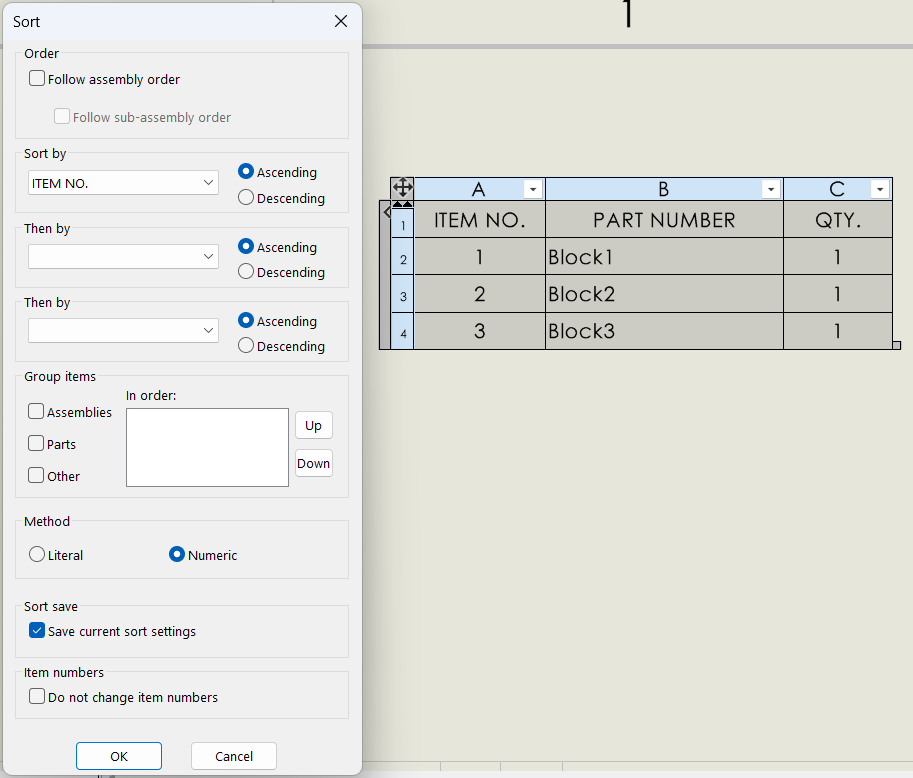
- Automatic Sorting: You can order a BOM by right-clicking on the table and selecting “Sort”. This brings up a dialog box, which allows you to arrange your BOM based on your preferences and allows for complex sorting algorithms.

Automatic sort dialog for BOMs
How to Save BOM Sort Settings
When you sort a Bill of Materials, SOLIDWORKS gives you the ability to save these settings as a BOM property or a template. There are currently two methods to save sort settings for a BOM: saving as a BOM property and saving as a BOM template. When you save the settings as a BOM property, we can reapply the settings without having to reselect the properties within the same sheet. When saving sort settings as a template, we can apply the settings by selecting the template for BOMs in other drawings.
Save Sort Settings as a BOM Property
We can save sort settings as a BOM property by right-clicking on the BOM and selecting “Sort” to bring up the automatic sorting options. In this menu, after applying the sort options select “Save current sort settings”. To apply the settings saved as a BOM Property, right-click on another BOM in the drawing sheet and select “Sort”. In this menu, you can apply your saved sort.

Applying a saved sort to another table
Save Sort Settings as a Template
We can save sort settings to a BOM template by right-clicking on the table and selecting “Save As…”. The save dialog will appear, allowing you to specify a folder, file name, and file type. For saving BOM templates, the file format is “Template (*.sldbombbt).
To apply the saved sort settings template, please follow the steps listed below:
- Begin creating a BOM by selecting Insert>Tables>Bill of Materials.
- Select a drawing view for the BOM to reference.
- To apply the template, select the star icon under Table Template in the Bill of Materials Property Manager and browse to the saved template.
- Click the green checkmark and place the BOM in your SOLIDWORKS drawing.

Bill of Materials template loaded into a new table
Customizing the options to sort a Bill of Materials is a crucial step in showing only the relevant information in a SOLIDWORKS drawing. Further, being able to reuse those sorting options in other tables within the same drawing or in completely different files is the best way to ensure standardization across your organization. Leveraging either BOM properties or BOM templates can help you get on your way to producing higher-quality drawings faster.
To learn more ways to improve your drawing experience, register for a SOLIDWORKS Drawings training course here.
Cloud Software
law
4
Berita Olahraga
Lowongan Kerja
Berita Terkini
Berita Terbaru
Berita Teknologi
Seputar Teknologi
Berita Politik
Resep Masakan
Pendidikan

